
Configuring Application Form Fields (Social Media Inputs)
Not all authors need the same information from their reviewers. Some focus on “BookTok” (TikTok), while others prioritize “Bookstagram” (Instagram) or personal blogs.
RS ARC Manager allows you to customize the application form to ask only for the social media profiles that matter to your marketing strategy.
1. Why Customize the Form?
- Reduce Friction: Asking for too much information can scare away potential reviewers. If you don’t use LinkedIn for book marketing, why ask for it?
- Targeted Marketing: If you are running a campaign specifically for Instagram influencers, you can make the Instagram field prominent while hiding others.
2. How to Enable/Disable Fields
- Log in to your WordPress Admin Dashboard.
- Navigate to ARC Campaigns > Settings.
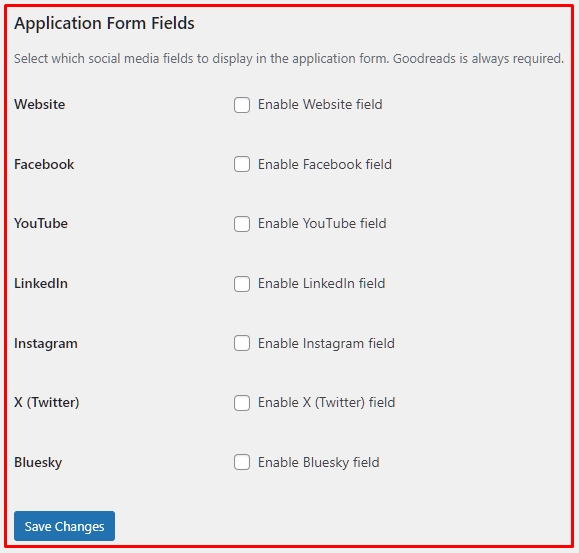
- Stay on the “General Settings” tab and scroll down to the section titled “Application Form Fields”.
3. Available Options
In this section, you will see a list of checkboxes. Simply check the ones you want to appear on the application form, and uncheck the ones you want to hide.
The Mandatory Field:
- Goodreads Profile URL: This field is always on and required. Since Goodreads is the primary hub for book reviews, we ensure you always capture this data.
The Optional Fields (Toggle On/Off):
You can enable any combination of the following:
- Website: (Great for book bloggers).
- Facebook: (Profile URL).
- YouTube: (Channel URL).
- LinkedIn: (Profile URL).
- Instagram: (Handle).
- X (Twitter): (Handle).
- Bluesky: (Handle).
4. Saving and Testing
- Once you have made your selection, click Save Changes at the bottom of the page.
- Test it: Open one of your campaigns in a new browser window (or incognito mode) and click the “Apply” button.
- You will see that the pop-up form now asks only for the fields you enabled.
Note: Any data collected from these fields will be visible to you in the “Applicant Details” modal when you review applications.
Next Tutorial: [Reviewing & Approving Applicants]