
Customizing Email Templates
While RS ARC Manager comes with professionally written default emails, you might want to change them to match your author brand or voice. Whether you want to sound professional, friendly, or urgent, you have full control over every email the system sends.
This guide explains how to customize your email subjects and bodies using dynamic placeholders.
1. Customizing the Welcome Email
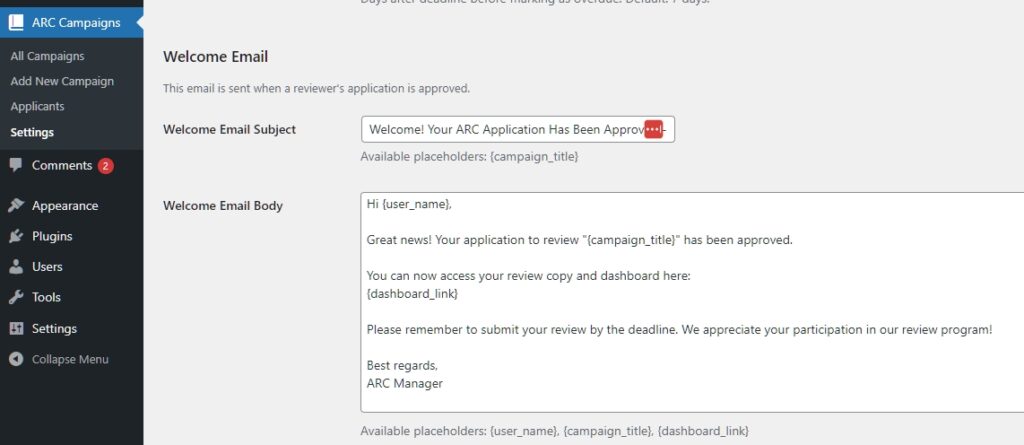
The “Welcome Email” is the first interaction a reviewer has with your system after being approved. It should contain the link to their dashboard so they can download the book.
- Navigate to ARC Campaigns > Settings.
- Stay on the “General Settings” tab.
- Scroll down to the “Welcome Email” section.
- Subject: Change this to something exciting like “You’re in! Download [Book Title] Now.”
- Body: Write your personal message.
⚠️ Crucial: You MUST include the
{dashboard_link}placeholder in the body, or your reviewers won’t know where to go to get the book.
2. Customizing Reminder Emails
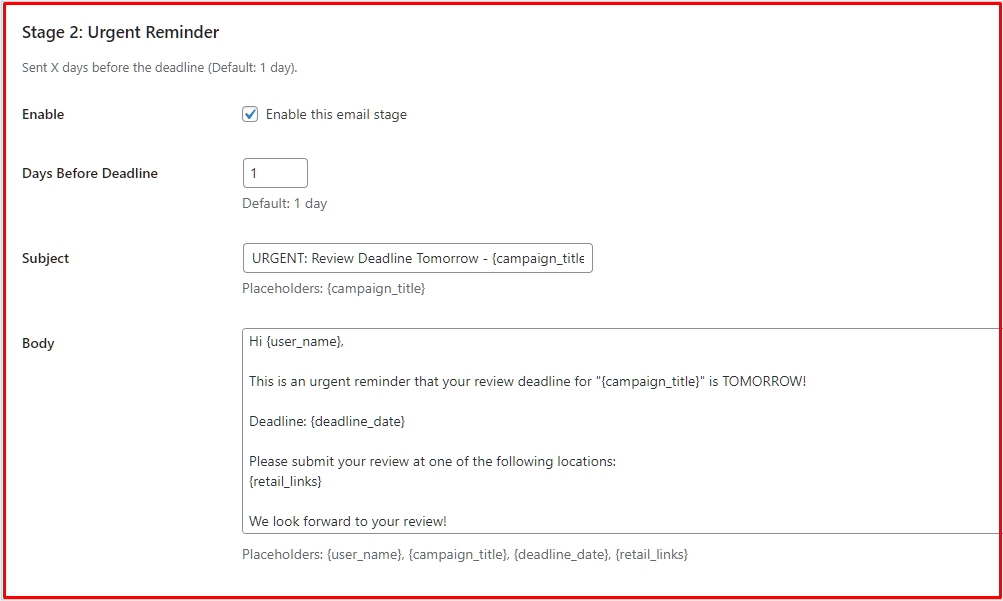
You can customize all 4 stages of the automated reminders.
- Click the “Email Automation” tab at the top of the Settings page.
- You will see sections for Stage 1, Stage 2, Stage 3, and Stage 4.
- For each stage, you can edit the Subject and Body.
- Tip: Make the tone progressively more urgent. Stage 1 should be polite (“Just a friendly reminder”), while Stage 4 should be firm (“Final Warning”).
3. Using Dynamic Placeholders (Magic Tags)
Placeholders are special codes that automatically get replaced with real data when the email is sent. You can use these in both the Subject line and the Body text.
Here is the list of available placeholders:
| Placeholder | Replaced With | Where to use |
{user_name} | The reviewer’s display name (e.g., “John Doe”). | All Emails |
{campaign_title} | The title of the book (e.g., “The Lost City”). | All Emails |
{dashboard_link} | The direct URL to the Reviewer Dashboard. | Welcome Email |
{deadline_date} | The review deadline (e.g., “December 10, 2025”). | Reminder Emails |
{retail_links} | A list of links (Amazon, Goodreads) where they need to review. | Reminder Emails |
{grace_end_date} | The date when the grace period expires. | Stage 4 Only |
Example: Writing a Great Reminder Email
Here is an example of how you might rewrite the Stage 1 (Early Reminder) email using placeholders:
Subject:
Hi {user_name}, are you enjoying {campaign_title}?
Body:
Plaintext
Hi {user_name},

I hope you are enjoying reading "{campaign_title}".

This is just a quick note to let you know that the review deadline is coming up on {deadline_date}.

When you are finished, please post your review here:
{retail_links}

And don't forget to submit your link on your dashboard!

Happy reading,
[Author Name]
4. Saving Your Templates
After editing your templates, don’t forget to scroll to the bottom of the page and click Save Changes.
- Note: You can update these templates at any time. The new text will be used for all future emails sent by the cron job.
Next Tutorial: [Reviewer Guide: How to Apply & Download Books]