
Submitting Reviews: A Guide for Readers
Thank you for reading the book! Once you have finished reading and posted your review on retail sites (like Amazon or Goodreads), the final step is to submit your review links to your dashboard.
This verifies your review and boosts your Reputation Score, ensuring you get approved for future books!
Step 1: Post Your Review Online
First, write and publish your review on the platforms required by the author (usually Amazon and Goodreads). Copy the direct link (URL) to your specific review.
- Tip: On Amazon, click the title of your review to get the direct permalink.
Step 2: Go to Your Dashboard
- Log in to your account.
- Navigate to your Reviewer Dashboard.
Step 3: Locate the Submission Form
- Scroll to the “Active Campaigns” section.
- Find the book you just read.
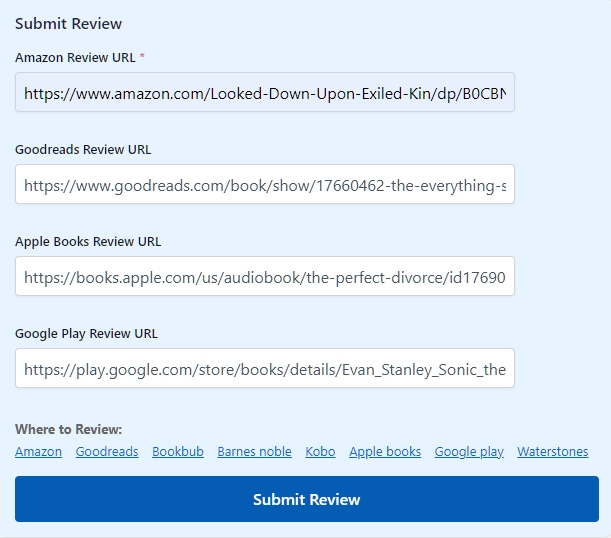
- On the right side of the book card (desktop) or below the image (mobile), you will see the “Submit Review” form.

Step 4: Paste Your Links
The form will show input fields based on where the author wants reviews.
- Amazon Review URL: Paste the link to your Amazon review here. This is often mandatory.
- Goodreads / Other URLs: If available, paste your Goodreads, BookBub, or social media links in the secondary fields.
- Click the blue “Submit Review” button.
Note: If the button is greyed out or says “Embargoed,” you must wait until the official launch date to submit.
Step 5: Confirmation
Once submitted, the page will refresh.
- The form will disappear.
- You will see a green “✓ Review Submitted” box.
- Your review links will be displayed as buttons so you can verify them.
Check Your Reputation Score
Every time you submit a review, you are building trust!
- Look at the top of your Dashboard.
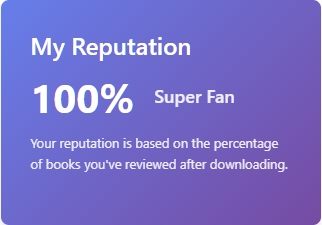
- You will see a “My Reputation” card.
- This score calculates the percentage of books you have reviewed versus downloaded.
- Goal: Keep this score above 90% to earn the “Super Fan” badge and get instant approvals for future books!
Next Tutorial: [Troubleshooting: Why Can’t I Submit My Review?]