
Understanding the Shortcodes: Displaying Your Campaigns
RS ARC Manager uses “Shortcodes” to display your book campaigns and the reviewer dashboard on your website. Shortcodes are simple snippets of text (like [example]) that you paste into a page, and the plugin automatically replaces them with beautiful layouts.
This guide explains the available shortcodes and where to use them.
1. The Reviewer Dashboard Shortcode
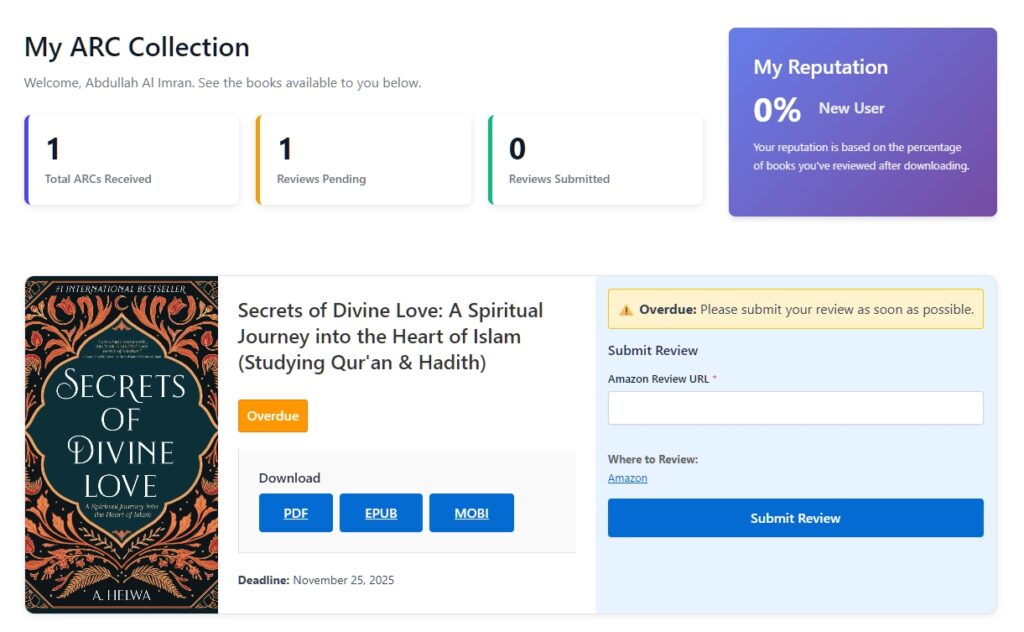
This is the most important shortcode. It creates the private area where your reviewers manage their books.
- Shortcode:
[rs_arc_dashboard] - Where to put it: Create a new page titled “Reviewer Dashboard” or “My Library” and paste this code there.
What it displays:
- Stats Overview: Cards showing “Total ARCs Received”, “Pending Reviews”, and “Reviews Submitted”.
- Reputation Score: A dynamic card showing the user’s current score (e.g., “Super Fan – 100%”).
- Active Books: A list of books the user has been approved for, with download buttons (PDF/EPUB) and review submission forms.
- Pending Applications: A list of books they have applied for but are waiting for your approval.
⚠️ Important: This content is only visible to logged-in users. Guests will see a login prompt.

2. The Campaign List Shortcode
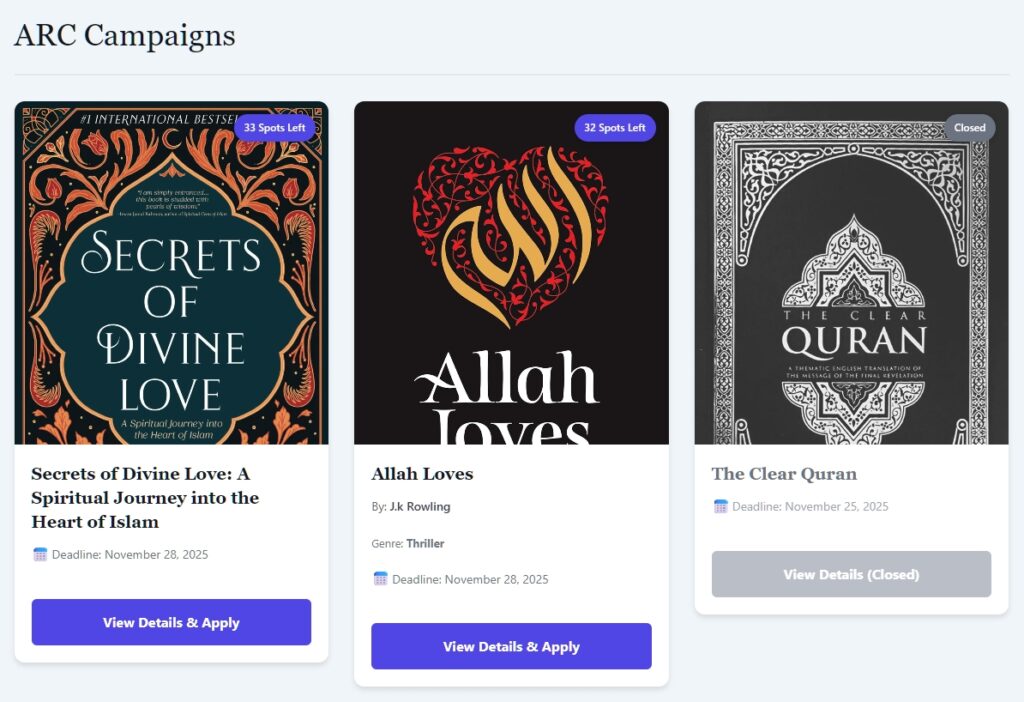
Do you want to create a public page showing all your available books? Use this shortcode.
- Shortcode:
[rs_arc_list] - Where to put it: Create a page titled “Available ARCs” or “Join Our Team” and paste this code.
What it displays:
- A professional, mobile-responsive grid of all your Active campaigns.
- Each card shows the Book Cover, Title, Author, Genre, Available Spots, and a “View Details & Apply” button.
- If a campaign is full or closed, it automatically shows a “Closed” badge and greyscale styling.
Customization (Optional):
You can limit how many books to show by adding a parameter:
[rs_arc_list posts_per_page="10"](Shows 10 books per page).[rs_arc_list](Default: Shows all active books).
3. The Single Campaign Shortcode
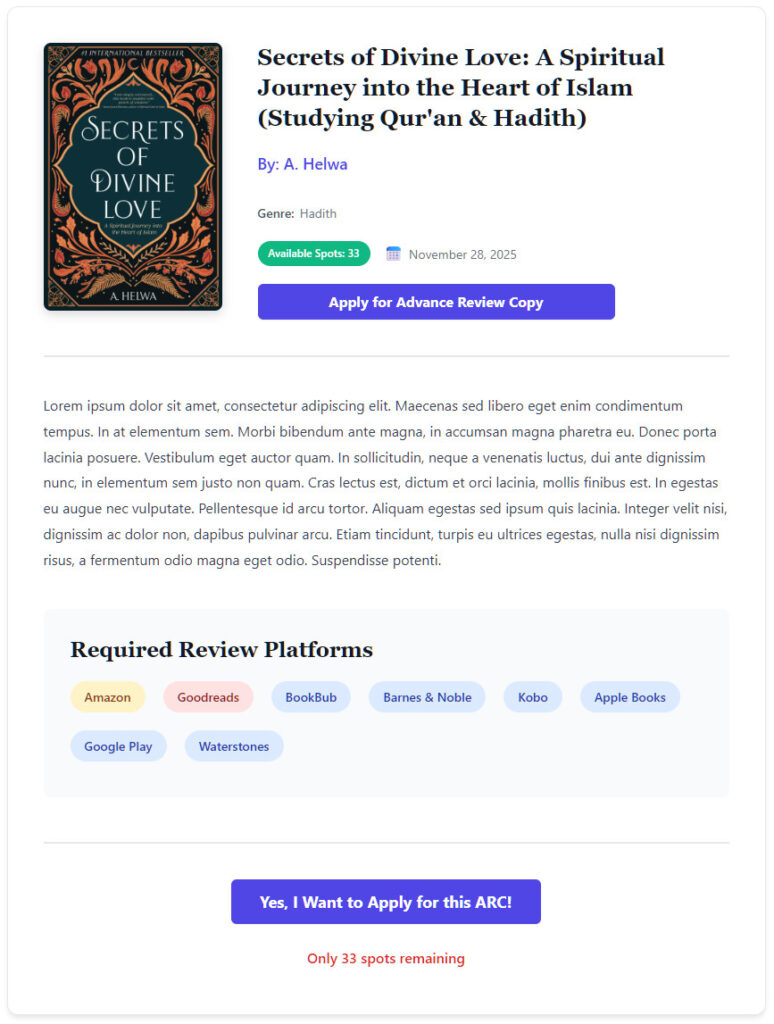
Usually, you don’t need this because clicking on a book in the “List” view automatically takes you to that book’s page. However, if you want to embed a specific book inside a blog post or a landing page, you can use this.
- Shortcode:
[rs_arc_campaign id="123"] - Where to find the ID: Go to ARC Campaigns > All Campaigns in your admin panel. Hover over a campaign title to see the ID, or look at the URL when editing (e.g.,
post=123).
What it displays:
- The full details of that specific book (Cover, Description, Requirements).
- The “Apply Now” button or Login prompt.
4. The Automatic Archive Page (No Shortcode Needed!)
For your convenience, RS ARC Manager automatically creates a public archive page for your books. You don’t need to create a page or paste any code for this!
- URL:
yoursite.com/campaigns/
How it works:
- When you publish a campaign, it automatically appears here.
- The design matches the
[rs_arc_list]layout perfectly. - It works with any theme (Classic or Block themes) without breaking your site’s design.
Summary: Which one do I need?
| Goal | Use Shortcode |
| Reviewer Portal (Required) | [rs_arc_dashboard] on a specific page. |
| Public Catalog (Optional) | [rs_arc_list] on a “Join Team” page. |
| Specific Book (Advanced) | [rs_arc_campaign id="X"] inside a blog post. |
Next Tutorial: [Creating Your First ARC Campaign: A Step-by-Step Guide]